Benchmarking Cpu Performance
We can use benchmarks such as Linpack (http://www.netlib.org/linpack/) and sysbench (https://github.com/nuodb/sysbench) to benchmark CPU performance. For this recipe, we’ll use sysbench. We’ll see how to run a benchmark on bare metal and inside the container. Similar steps can be performed in other environments, like we mentioned previously.
Getting ready
We will use the CentOS 7 container to run the benchmark inside the container. Ideally, we should have a system with CentOS 7 installed to get benchmark results on bare metal. For the container test, let’s build the image from the Git repository that we referred to earlier:
$ git clone https://github.com/redhat-performance/docker-performance.git
$ cd docker-performance/Dockerfiles/
$ docker image build -t c7perf --rm .
$ docker image ls
REPOSITORY      TAG       IMAGE ID      CREATED            SIZE
c7perf          latest    59a10df39a82  1 minute ago       678.3 MB
How to do it…
Inside the same Git repository, we have a script to run sysbench , that is, docker-performance/bench/sysbench/run-sysbench.sh . It has some configurations, which you can modify according to your needs:
- As the root user, create the
/resultsdirectory on the host:
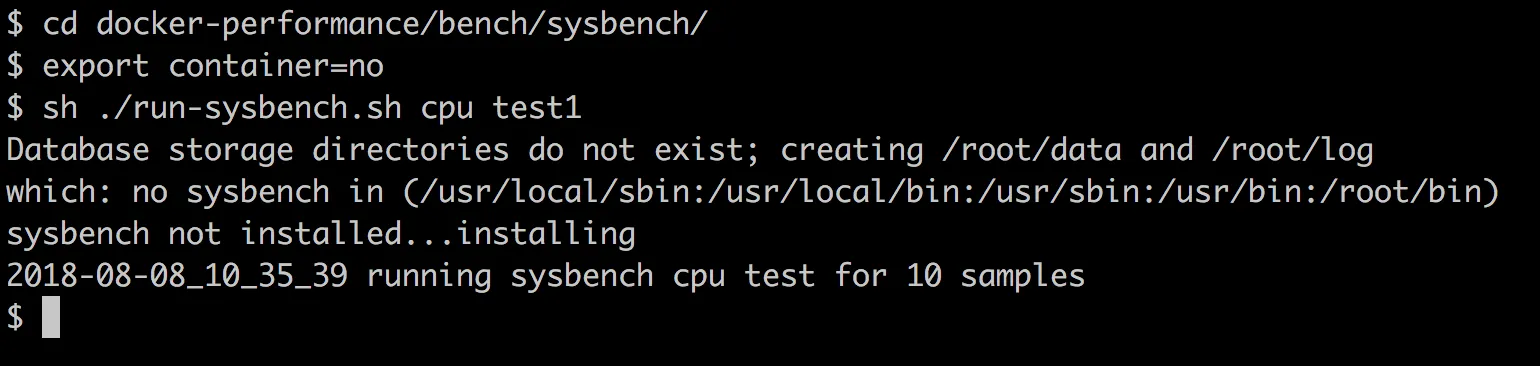
$ mkdir -p /resultsNow, run the benchmark after setting the container environment variable to something other than Docker, which we used while building the c7perf image on the host machine, with the following commands:
$ cd docker-performance/bench/sysbench
$ export container=no
$ sh ./run-sysbench.sh  cpu test1
If you are running on an OS other than CentOS, you might need to install sysbench manually, and run the script a little differently. For example, here is how you run the script with Ubuntu 18.04:
$ apt-get install sysbench
$ cd docker-performance/bench/sysbench
$ export container=no
$ bash ./run-sysbench.sh cpu test1
By default, the results are collected in /results . Make sure you have write access to it or change the OUTDIR parameter in the benchmark script:
- To run the benchmark inside the container, we need to first start the container and then run the benchmark script:
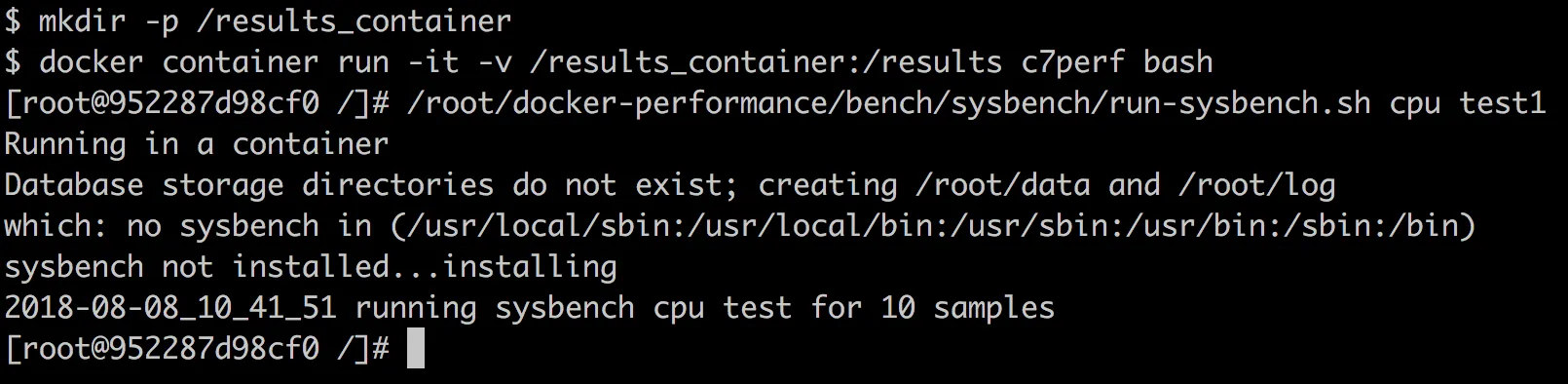
$ mkdir -p /results_container
$ docker container run -it -v /results_container:/results c7perf bash
# /root/docker-performance/bench/sysbench/run-sysbench.sh cpu test1
As we mount the host directory, /results_container , inside the /results container, the result will be collected on the host:
- While running the preceding test on Fedora/RHEL/CentOS, where SELinux is enabled, you will get a Permission denied error. To fix it, relabel the host directory while mounting it inside the container as follows:
$ docker container run -it -v /results_container:/results:z c7perf bashAlternatively, for the time being, put SELinux in permissive mode:
$ setenforce 0Then, after the test, put it back in permissive mode:
$ setenforce 1TIP
Refer to Chapter 9, Docker Security , for more details about SELinux.
How it works…
The benchmark script internally calls sysbench’s CPU benchmark for the given input. CPU is benchmarked by using 64-bit integer manipulation using Euklid algorithms for prime number computation. The result for each run gets collected in the corresponding results directory, which can be used for comparison.
There’s more…
Almost no difference is reported between bare-metal and Docker CPU performance.
See also
Look at the CPU benchmark results published in IBM and VMware using Linpack in the links referenced earlier in this chapter.