Removing An Image
The docker image rm command lets you remove images from the Docker host. This command can remove one or more images, and you can specify images using one of the following identifiers:
-
The image’s short ID.
-
The image’s long ID.
-
The image’s digest.
-
The image’s name along with its tag. If the tag is not specified, then the
latesttag is assumed by default.
If the image happens to have more than one tag associated with it, then those tags must be removed before removing the image. Alternatively, you can forcefully remove them using the -f or --force option of the docker image rm command. In such a case, all the tags will also be automatically removed.
Here is the syntax for the docker image rm command:
docker image rm [OPTIONS] IMAGE [IMAGE...]In this recipe, we will create multiple tags for an image and demonstrate how to remove them.
Getting ready
One or more Docker images should be locally available in the Docker host.
How to do it…
Perform the following steps:
- Let’s choose one of the existing images and add multiple tags to it, as shown in the following screenshot:
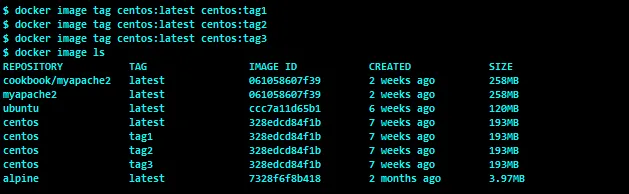
Here, we have selected the centos image with the image ID 328edcd84f1b and added another three tags: tag1 , tag2 , and tag3 . All the tags have the same image ID of 328edcd84f1b .
- Now, let’s make an attempt to delete the image with the ID
328edcd84f1band observe the outcome:

Clearly, the docker image rm failed to remove the image because there are four tags referring to the same image ID.
- Remove the tags from the image until all the tags are removed and the image is deleted, as shown in the following screenshot:
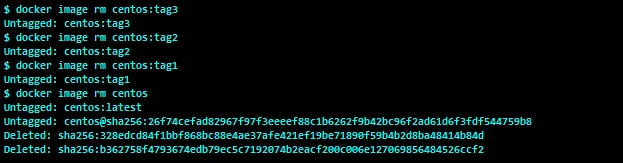
Clearly, the docker image rm command removed the tags, and finally removed the image when there were no more tags.
There’s more…
-
In the preceding recipe, we removed the tags one by one till all the tags were removed and the image was deleted. Perhaps you could use the
-for--forceoption of thedocker image rmto delete all the tags and images in one stroke. -
Before using the
--forceoption, ensure that the image doesn’t have any containers spawned from that image. Otherwise, you will end up having dangling images. -
Though it is not recommended, if for any reason you want to remove all containers and images, then you can use the following commands:
-
To stop all containers, use the following command:
$ docker container stop $(docker container ls -q)- To delete all containers, use the following command:
$ docker container rm $(docker container ls -a -q)`- To delete all images, use the following command:
$ docker image rm $(docker image ls -q)See also
- The
helpoption ofdocker image rm:
$ docker image rm --help- The documentation on the Docker website:
https://docs.docker.com/engine/reference/commandline/image_rm/