Pulling An Image
After searching for the image, we can pull it to the system by running the Docker daemon. Let’s see how we can do that.
Getting ready
Ensure that the Docker daemon is running on the host and can be connected through the Docker client.
How to do it…
To pull an image from the Docker registry, you can either run the following:
docker image pull [OPTIONS] NAME[:TAG|@DIGEST]Or the legacy command:
docker pull [OPTIONS] NAME[:TAG|@DIGEST]The following is an example of pulling the ubuntu image:
$ docker image pull ubuntu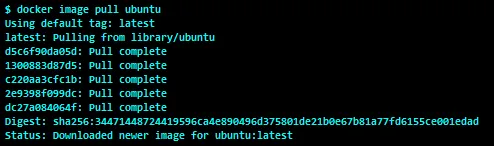
How it works…
The pull command downloads all layers from the Docker registry that are required to create that image locally. We will see details about layers in the next chapter.
There’s more…
Image tags group images of the same type. For example, CentOS can have images with tags such as centos6 , centos7 , and so on. To pull an image with a specific tag, for instance, run the following command:
$ docker image pull centos:centos7By default, the image with latest tag gets pulled. To pull all images corresponding to all tags, use the following command:
$ docker image pull --all-tags alpineFrom Docker 1.6 (https://blog.docker.com/2015/04/docker-release-1-6/), we can build and refer to images by a new content addressable identifier called a digest . It is a very useful feature when we want to work with the specific images, rather than tags. To pull an image with a specific digest, we can use the following syntax:
$ docker image pull <image>@sha256:<digest>The following is an example of using the preceding command:
$ docker image pull nginx@sha256:788fa27763db6d69ad3444e8ba72f947df9e7e163bad7c1f5614f8fd27a311c3Digests are only supported with version 2 of the Docker registry.
Once an image gets pulled, it resides on the local cache (storage), so subsequent pulls will be very fast. This feature plays a very important role in building Docker layered images.
See also
Look at the help option for docker image pull :
$ docker image pull --help- The relevant documentation on the Docker website can be found here: https://docs.docker.com/engine/reference/commandline/image_pull/.